Start with up-to-date availability
Bring availability, contracted hours, leave and sick leave together before scheduling begins.

Why scheduling breaks down
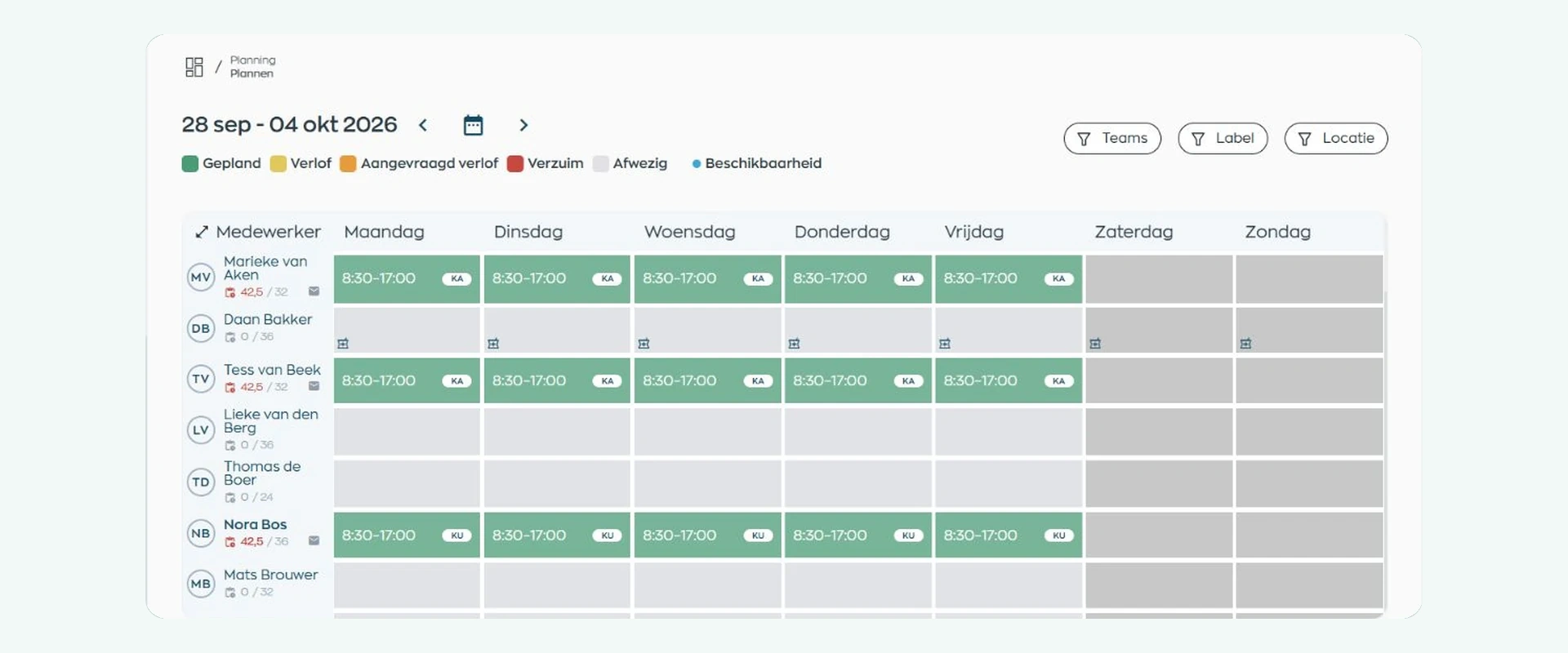
Availability arrives in messages, leave is recorded elsewhere and one sickness report can create a second version of the schedule. Planners end up collecting, checking and communicating the same information again. WorkVine connects availability, scheduling, changes and follow-up, while keeping the planner in control.
Bring availability, contracted hours, leave and sick leave together before scheduling begins.
Build the schedule with the information you need, then choose when to email it to the employees involved.
Keep shift swaps, conflicts and variances between planned and recorded hours easy to follow.
1. Availability
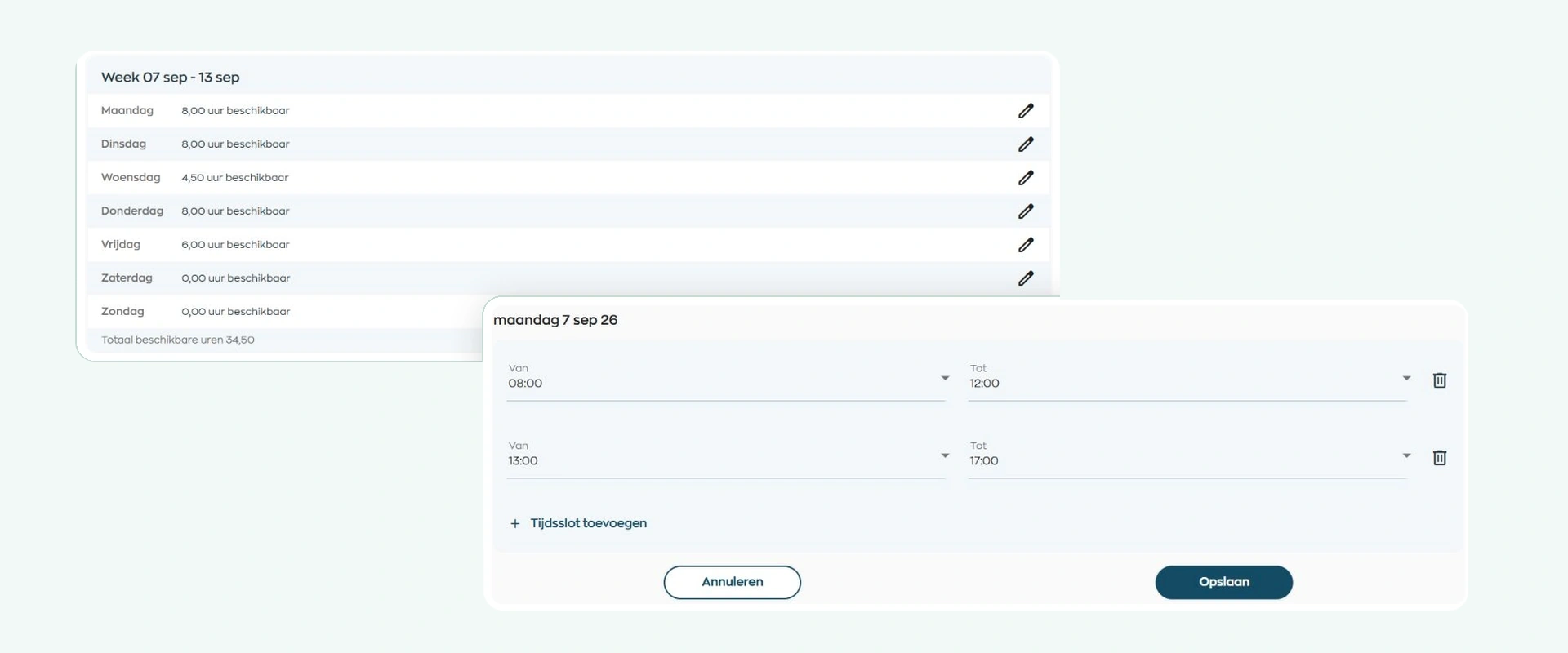
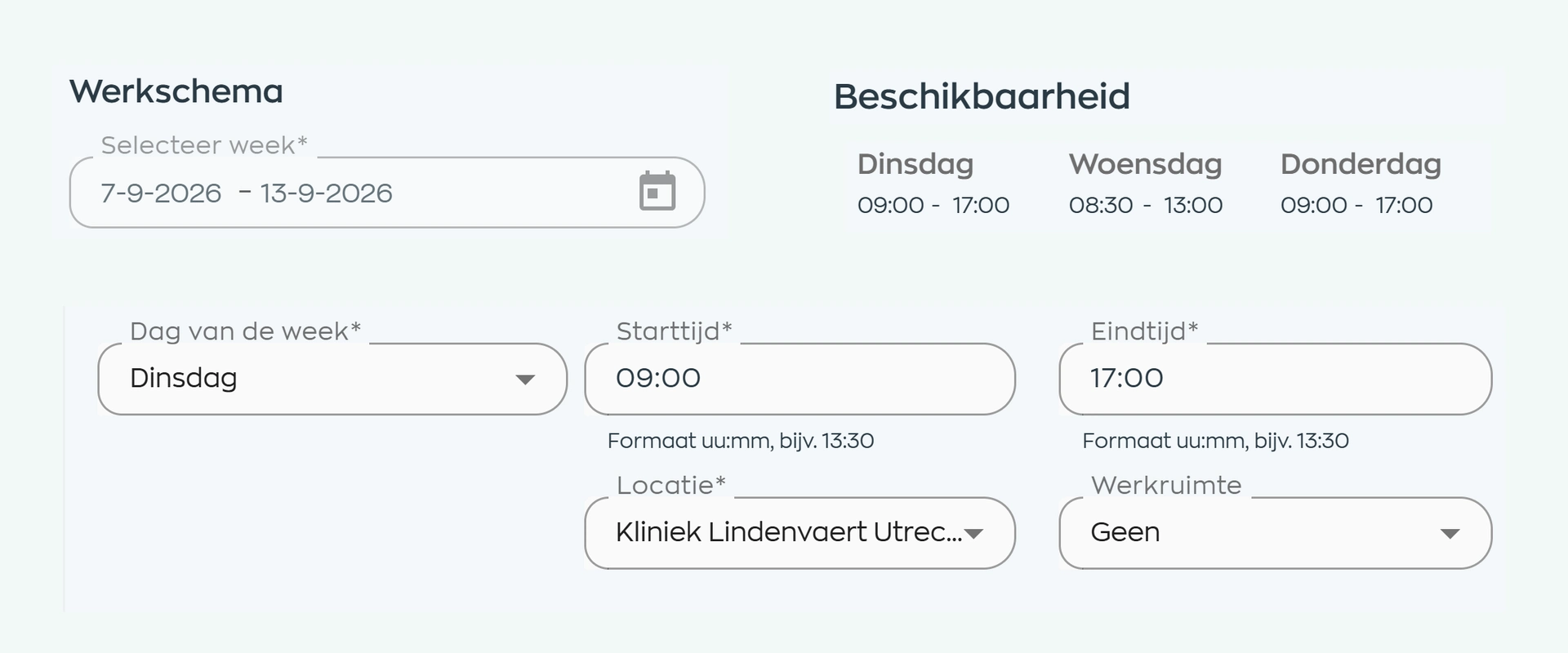
Employees submit one or more availability windows for each day in the Employee App. They can copy a previous week when their availability repeats.
Planners no longer need to copy that information from messages or separate lists. Availability appears alongside contracted hours, leave and sick leave, with filters to focus the planning view.
2. Building the schedule
Set the start and end time, location, label and any relevant note for each shift. While scheduling, planners can see how planned hours compare with contracted hours.
Schedule templates and working patterns provide a practical starting point for recurring weeks. The planner remains responsible for the decisions and the final schedule.
3. Publishing
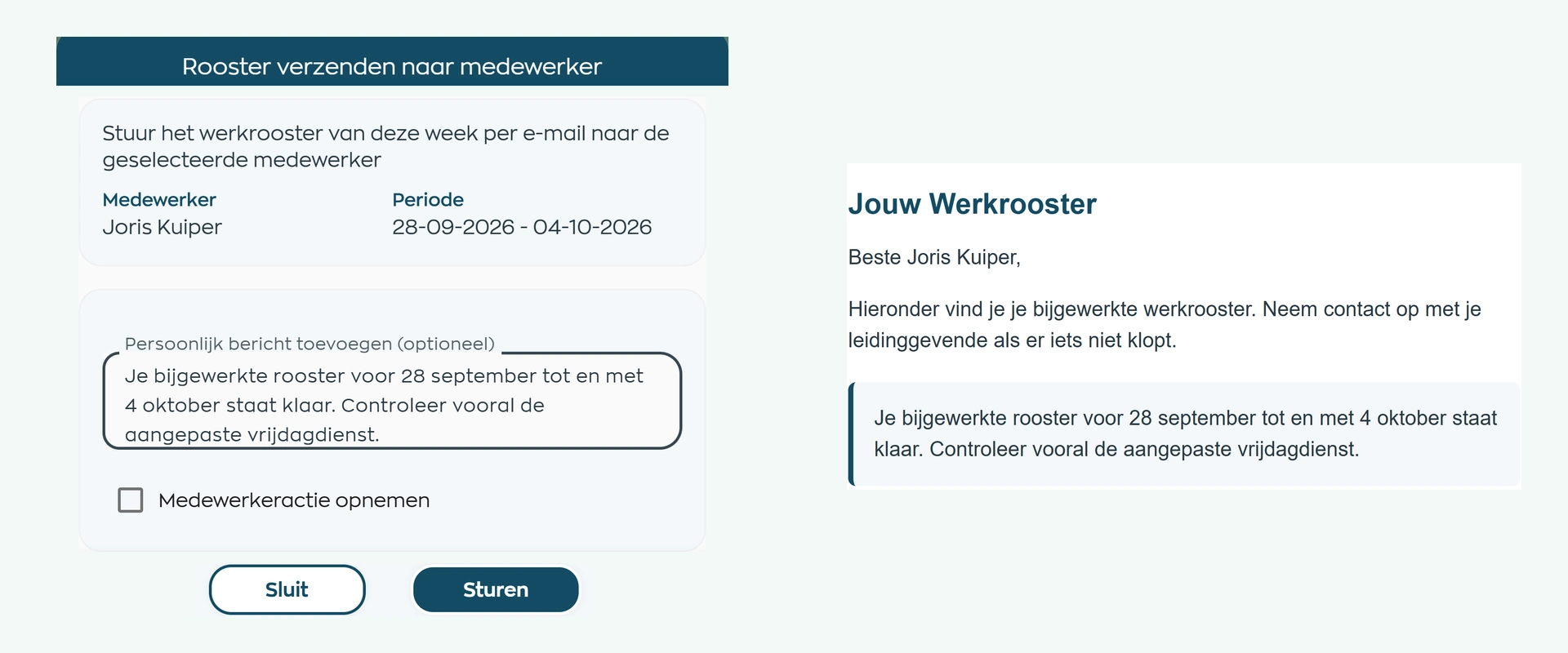
The planner selects the employee and schedule period, then sends the schedule manually by email. A personal message can be added when useful.
The planner may also add an app action. After a later change, the planner decides whether to send the updated period again by email.
4. Employee App
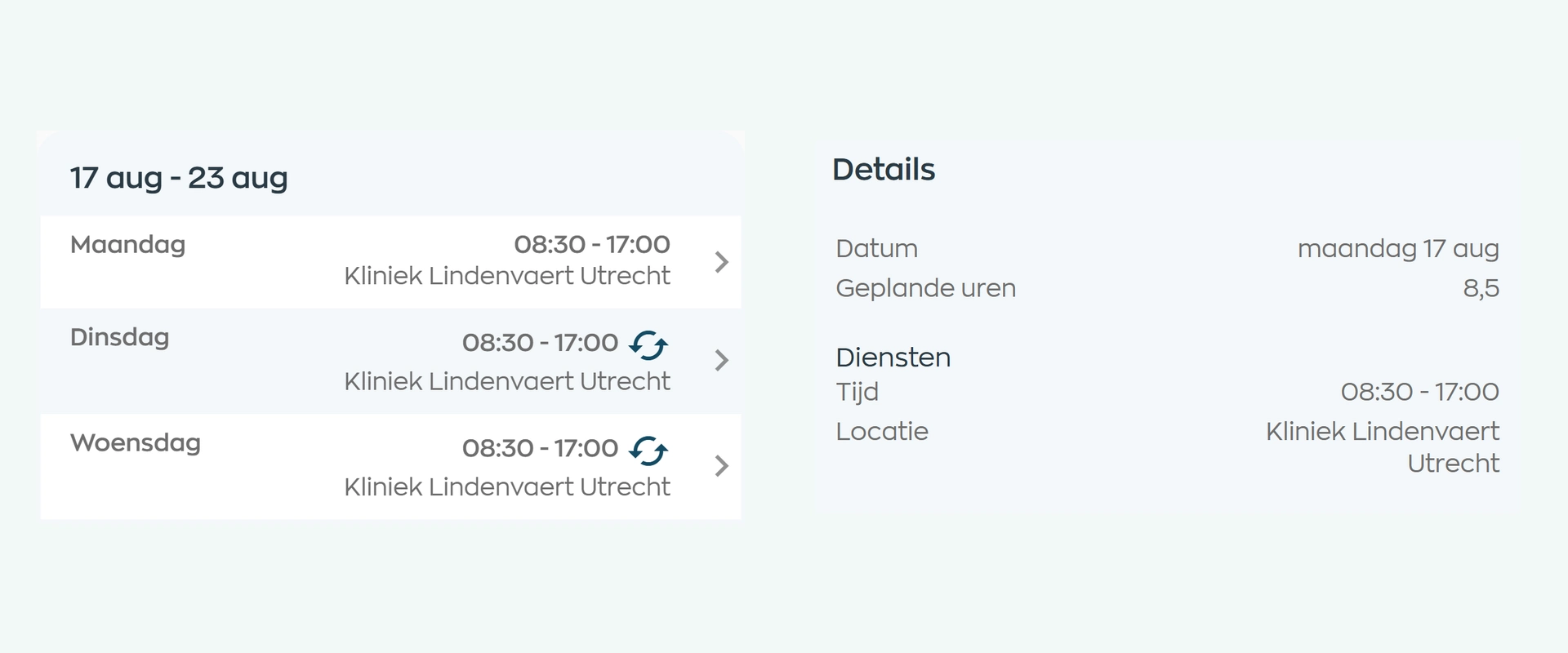
In the Employee App, each employee sees their current shifts and details such as the time, location and schedule information.
After a change, employees do not need to search through an old email. The app remains the current source, while the planner decides whether to send the change again by email.
5. Shift swaps
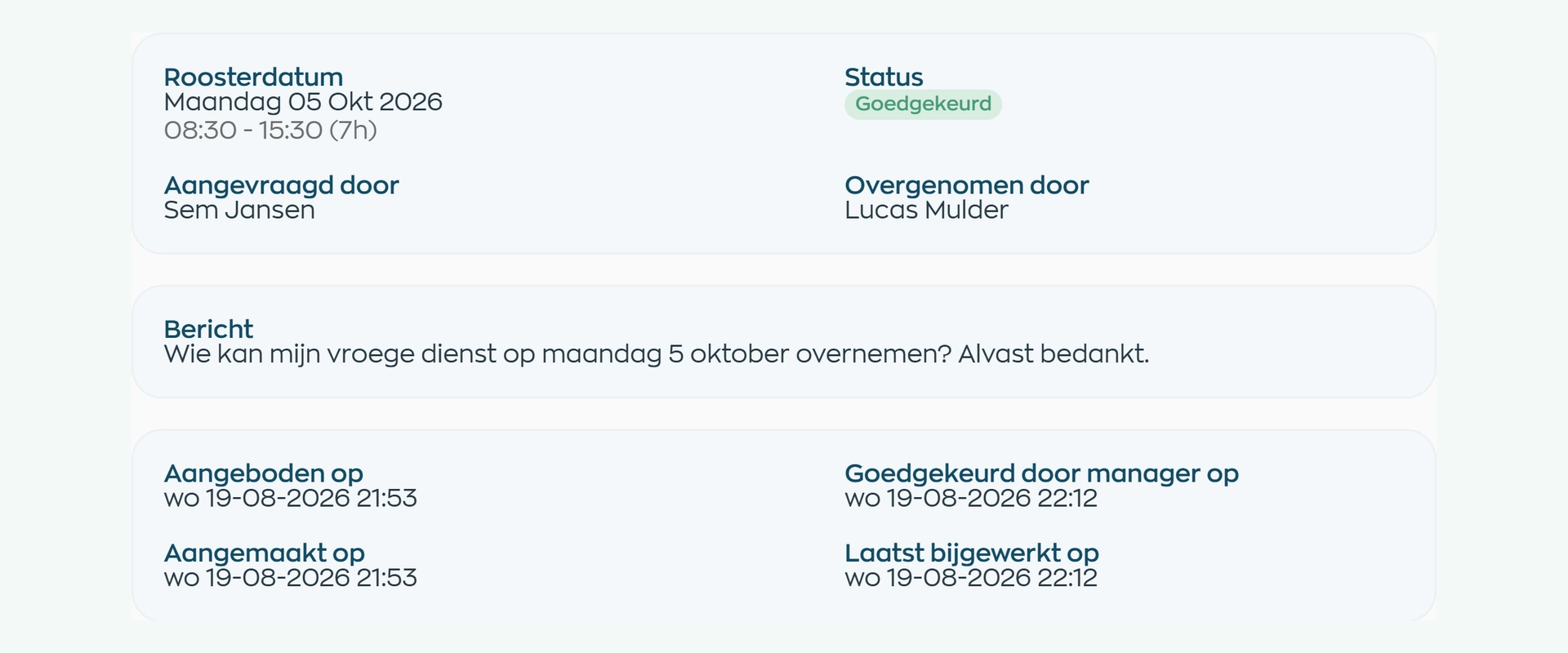
An employee can offer a shift to a colleague or the wider team. WorkVine checks for conflicts with existing shifts, leave and sick leave.
Where approval is required, the manager makes the decision. Once processed, the schedule and app notifications are updated. Managers can also offer an open shift themselves.
6. Compare scheduled and recorded hours
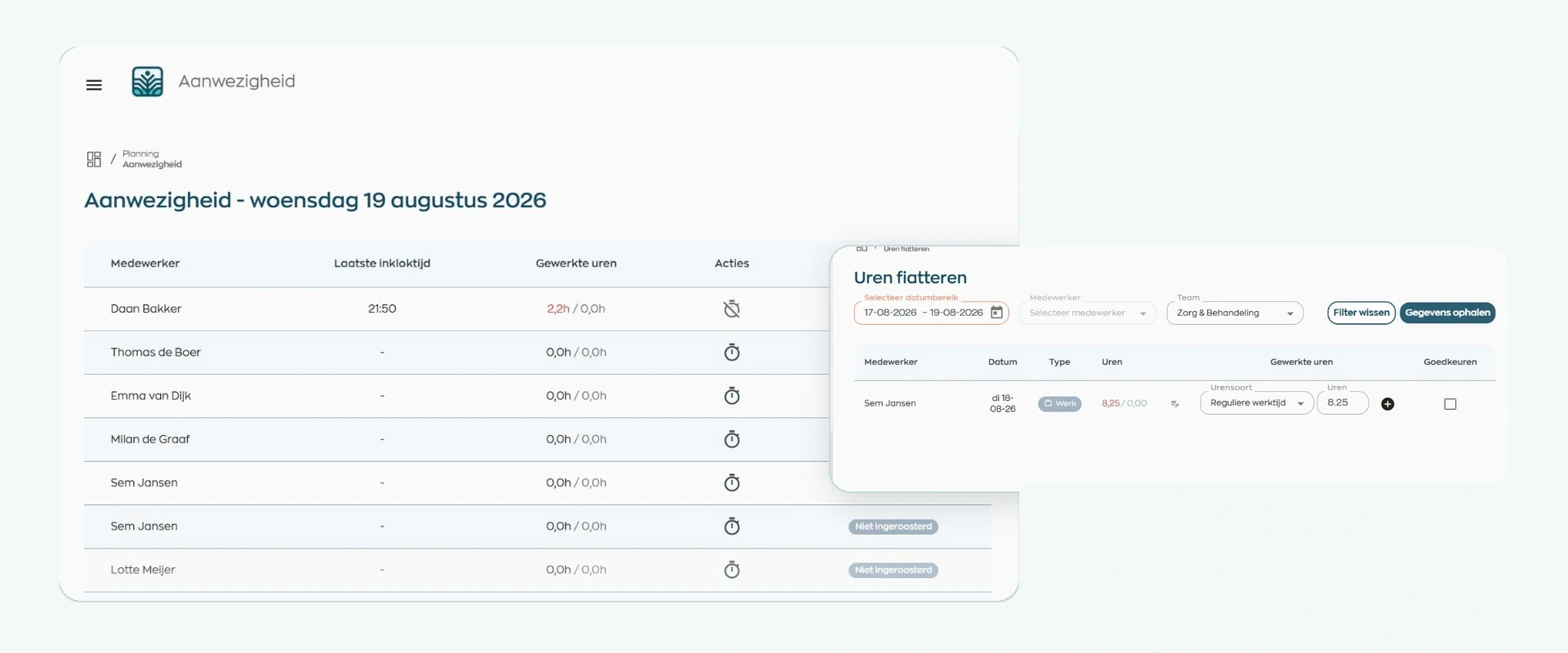
When used with Time Tracking and the Location App, WorkVine shows where recorded hours differ from the schedule. If attendance lasts longer than scheduled, it is highlighted in red as a signal, never as an automatic rejection.
The manager compares planned and recorded hours, then approves or rejects the entry. Once the schedule is published, managers can follow through by reviewing the hours recorded.
What changes
The app shows the current schedule, while each role sees the information and decisions relevant to their work.
Plan with up-to-date availability, choose when to share the schedule and keep employees informed in the app.
Submit availability, view current shifts and offer a shift without moving the process outside WorkVine.
Review shift swaps and hours variances when a decision is required.
Is this right for you?
WorkVine Staff Scheduling suits organizations that need more than a weekly schedule and want to keep availability, changes and follow-up under control.
Need to determine how many people and which qualifications a workspace requires first? WorkVine supports that through the separate Capacity Planning module.
Capabilities
Compare your current scheduling process step by step, from availability and shifts to changes and hours review.
Frequently asked questions
Clear answers about availability, sharing schedules, shift swaps, hours review and the difference between scheduling and capacity planning.
Staff scheduling software brings availability, absence, contracted hours, shifts and schedule changes together. WorkVine also connects that planning with the Employee App and, when used, time tracking and approval.
No. WorkVine presents the relevant information and provides tools such as filters, templates and working patterns. The planner makes the decisions and builds the schedule.
Employees use the Employee App to submit one or more availability windows for each day. They can also copy their availability from a previous week.
Yes. Leave and sick leave appear in the scheduling context alongside availability and contracted hours, so the planner can take them into account.
Yes. The planner manually selects the employee and schedule period and may add a personal message. An action can also be added to the Employee App. WorkVine does not automatically send an email after every schedule change.
An employee can offer a shift to a colleague or the wider team. WorkVine checks for conflicts with existing shifts, leave and sick leave. Where the configured process requires it, a manager decides whether to approve the swap.
Yes, when Staff Scheduling is used with Time Tracking. A manager compares planned and recorded hours and can approve or reject the entry. The Location App can additionally support clocking at a location and flag longer attendance in red.
Staff Scheduling assigns employees to shifts. Capacity Planning defines how many employees and which qualifications are required for each location, workspace and work block. The modules complement each other but serve different purposes.

City Hub moved from a standalone scheduling tool to connected scheduling, leave, timesheet approval and employee records.
Read City Hub’s story →Where work, people and growth come together
Bring a typical week's schedule to the demo. We will show how availability, scheduling, email updates, shift swaps and hours review work together.