Onboarding starts before the invitation
Prepare the record as a draft first, then activate the employee once their team, employment details and account are ready.

Why employee records become fragmented
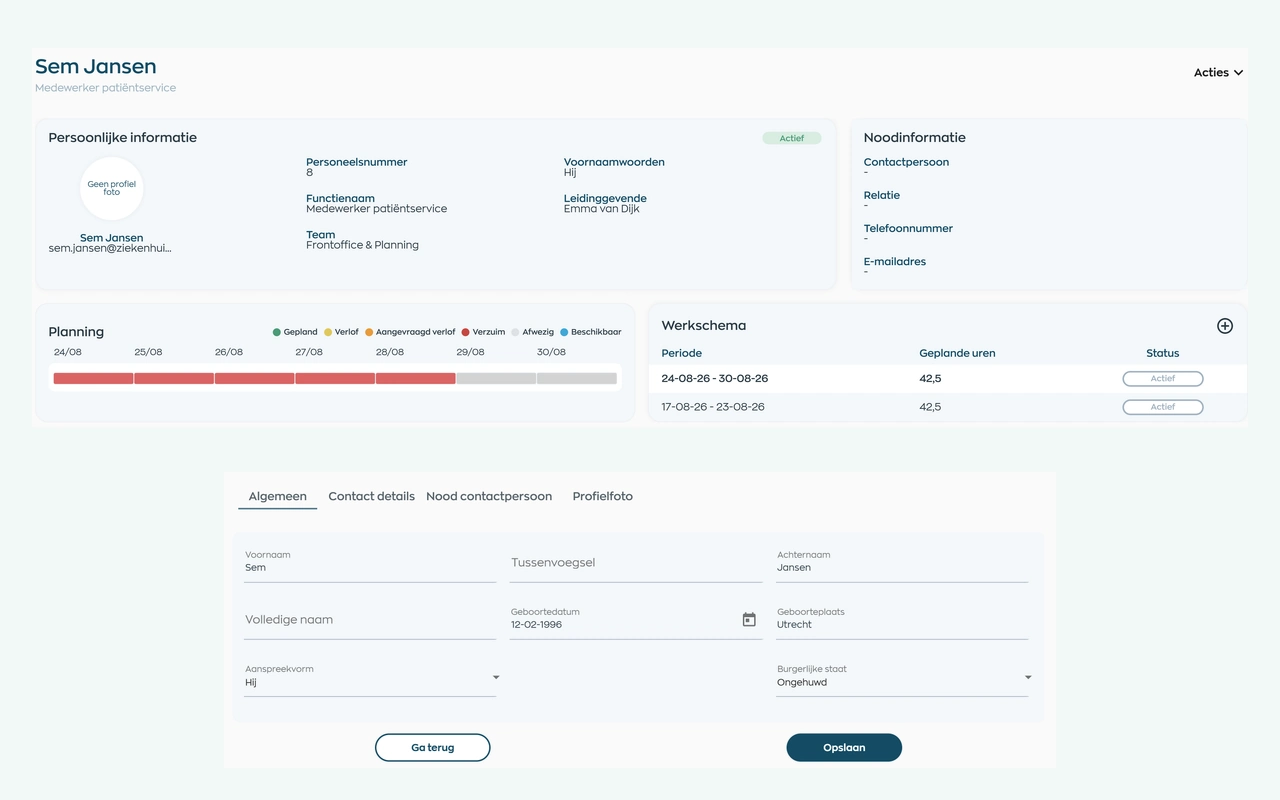
A new starter, team change, expiring document or departure affects more than one list. When employee details, documents and daily workflows sit apart, HR spends time searching, re-entering and checking information. WorkVine connects each employee record with the work around it, with access determined by users’ roles and the employees assigned to them.
Prepare the record as a draft first, then activate the employee once their team, employment details and account are ready.
Keep scheduling, leave, sick leave, documents, tasks and development connected to the same employee record.
Give each user the features and access to employees they need for their role.
1. Onboarding
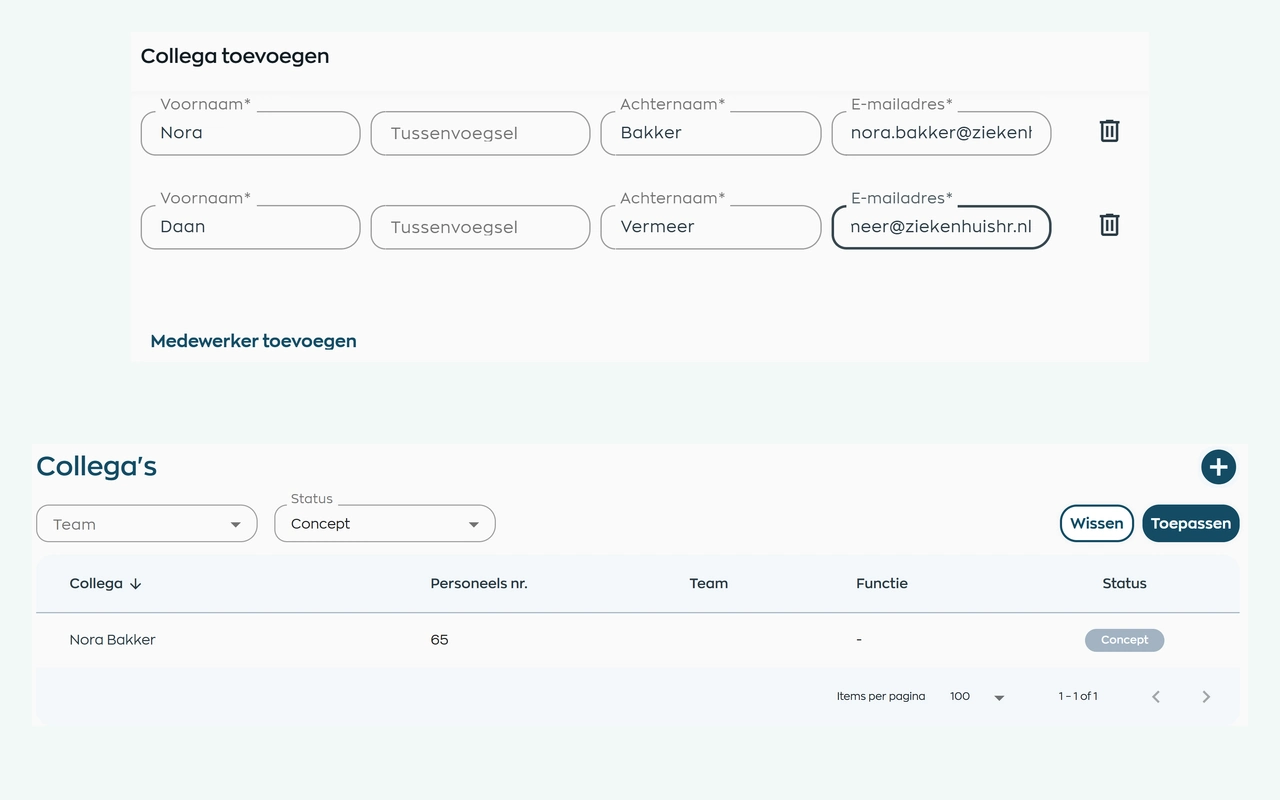
Add one employee or several new starters in the same step. WorkVine creates draft records and reserves their employee numbers; no welcome email is sent at this point.
When someone joins through WorkVine Recruitment, hiring them creates a draft record with their candidate data and documents. HR reviews the handover before activating the account.
2. Employee record
Use the General, Contact, Employment and Account sections to record the employee’s team, job title, manager, employee number and account status in the right place.
Search for employees by name and filter the overview by team or status. HR can quickly find the right record and see who is in Draft, Invited, Active or Archived status.
3. Activation and invitation
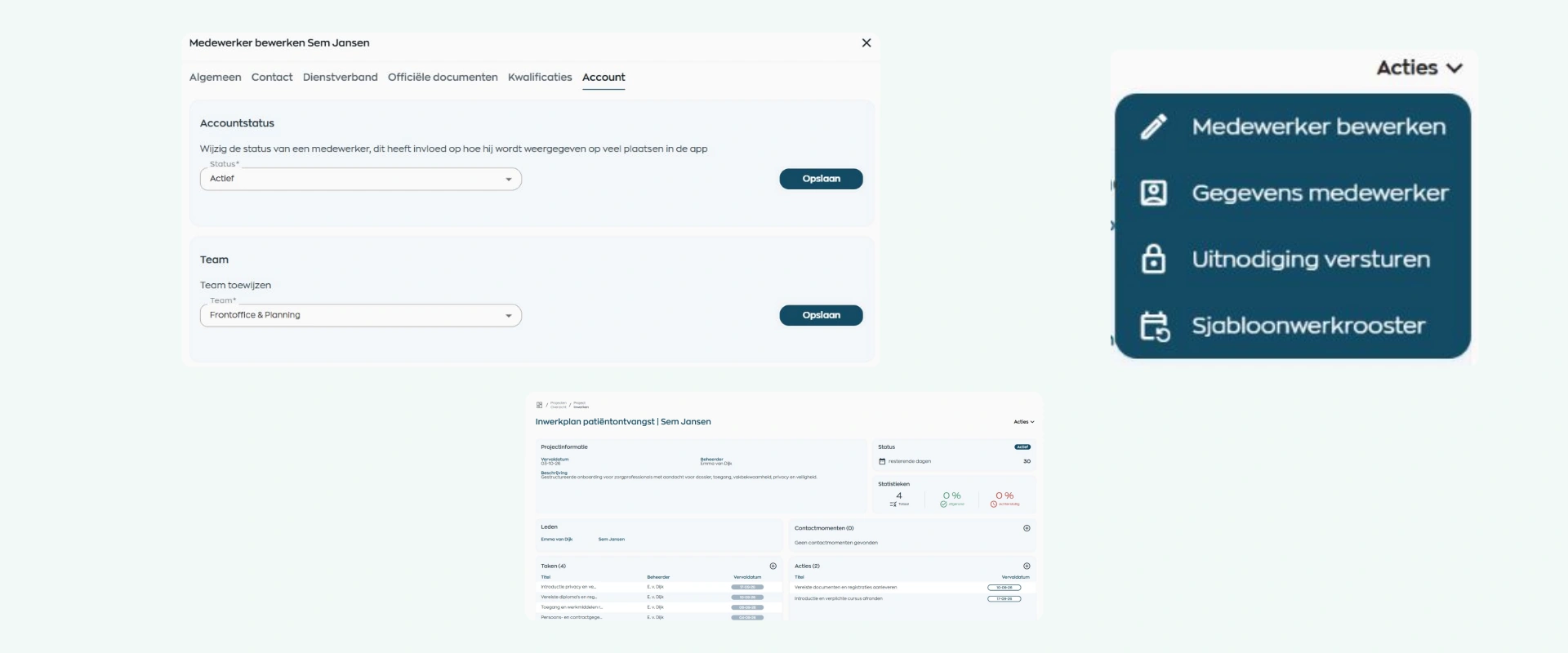
Assign a team, complete the required profile and employment details, and then activate the account. Next, set the appropriate access role: Administrator, Manager, Team Assistant or Employee.
You then choose when to send the welcome email with its password setup link. Employees receive access to the Employee App; users with additional management permissions can also work in Office.
After onboarding, you can set up an induction plan with clear tasks for the manager and actions for the employee.
4. Employee App
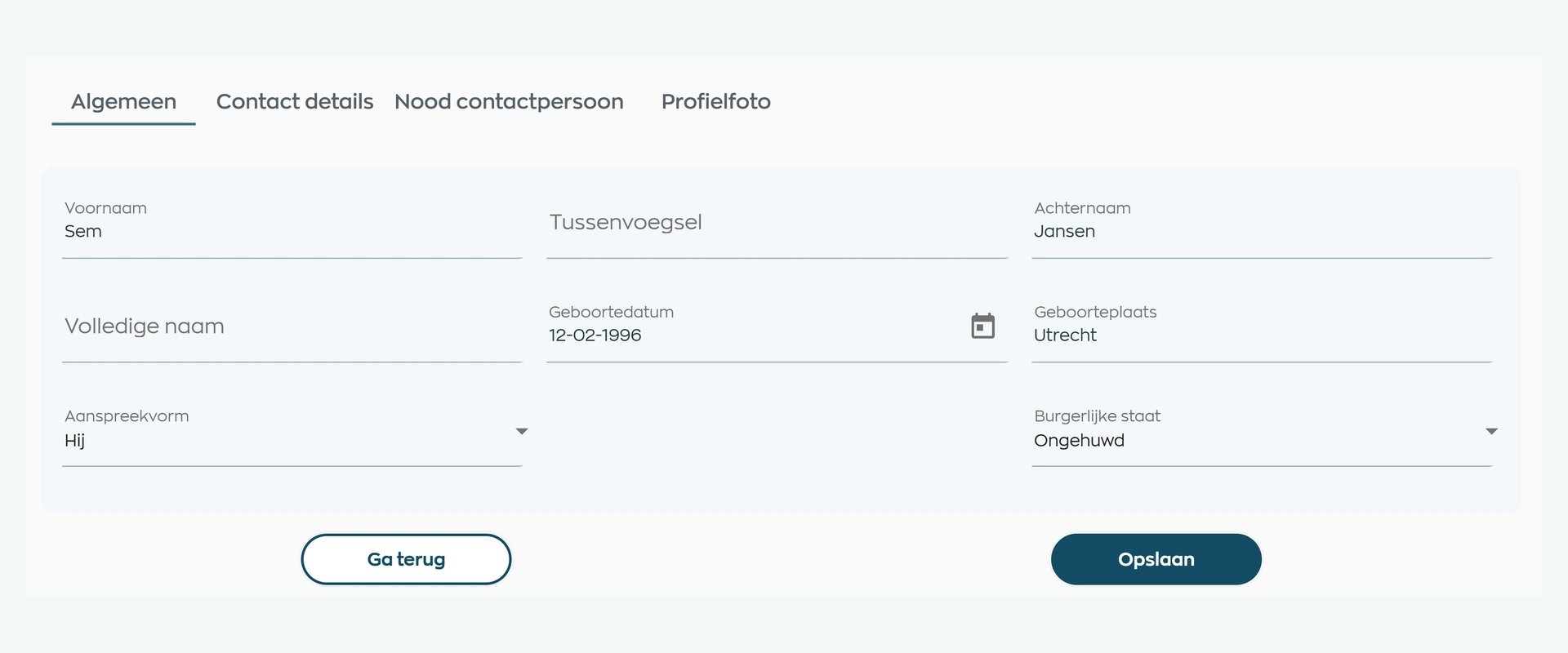
During first use, WorkVine can ask employees to review their name, form of address and birth details, and complete their address, telephone number and other contact information.
Employees can also add an emergency contact and upload and crop a profile photo. Employees can update only their own profile details. The colleague directory does not give them access to HR records or permission to edit them.
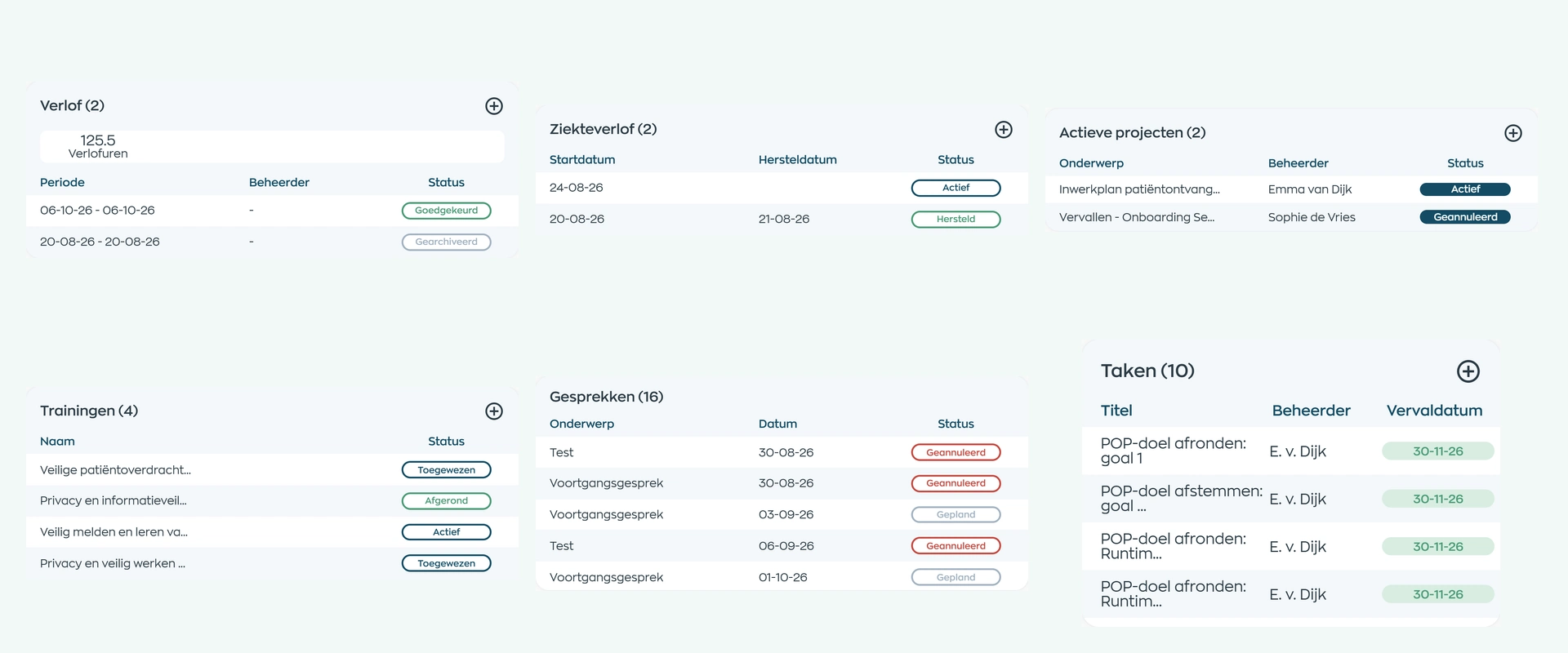
5. Day-to-day follow-up
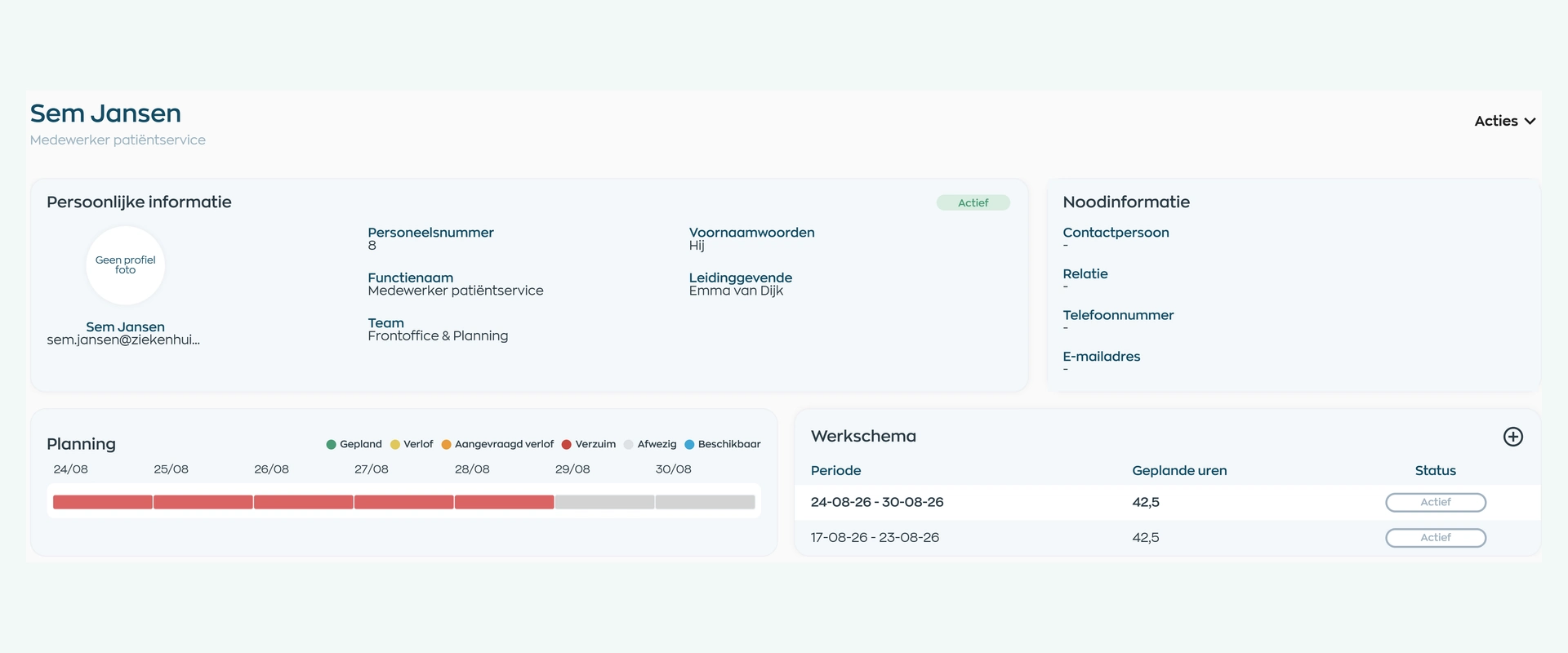
The employee record brings personal and organizational information together with the work pattern and relevant follow-up. Depending on the active modules and permissions, users can see contact moments, employee actions, tasks, leave, sick leave and recent hours.
Projects, conversations, legal HR documents, company assets and other employee documents are also accessible from the employee record. Open an item to continue working in the relevant module.
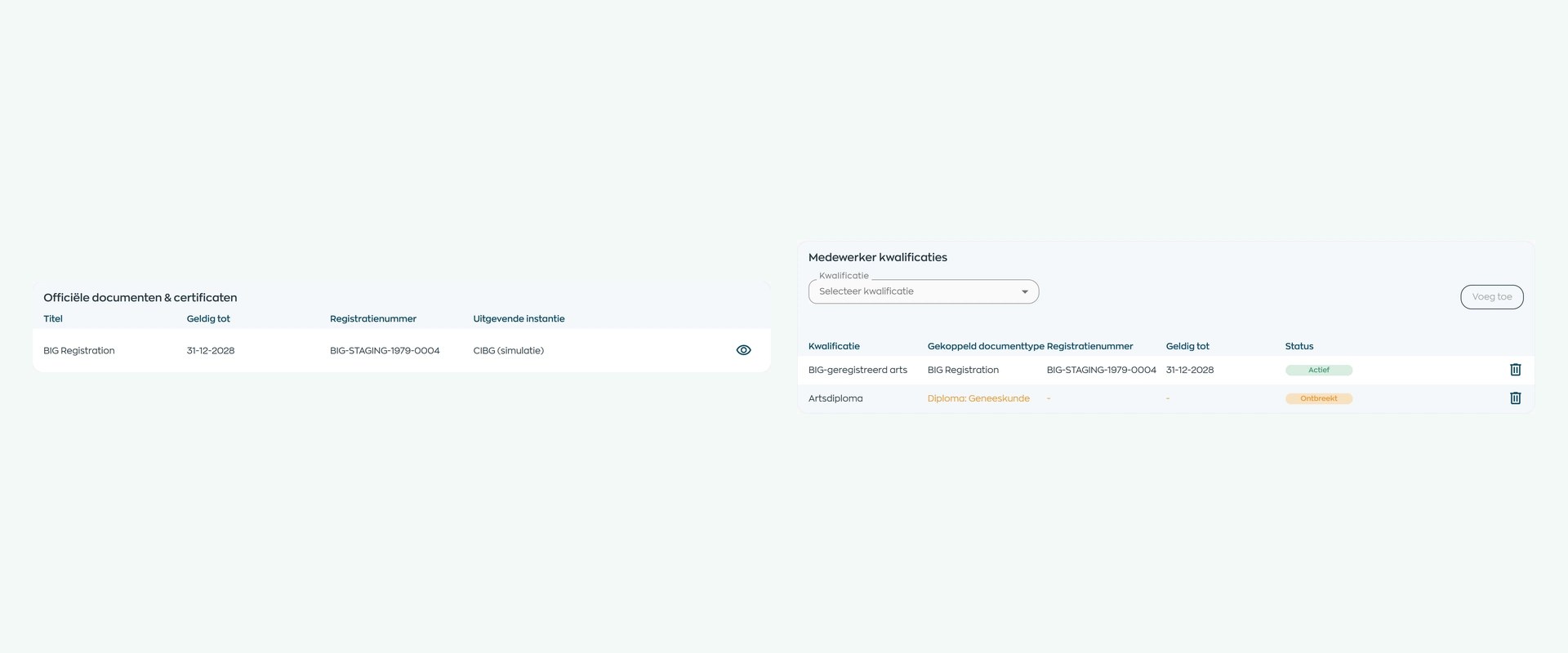
6. Documents and qualifications
Record official evidence such as an identity document, driver’s license, certificate of conduct, diploma or professional certificate. WorkVine shows the fields configured for that document type, such as registration number, issuer and expiry date.
Expired evidence is clearly marked. When a document type is linked to a qualification, WorkVine recalculates its status as Active, Missing or Expired. Official evidence remains distinct from legal HR documents such as employment agreements.
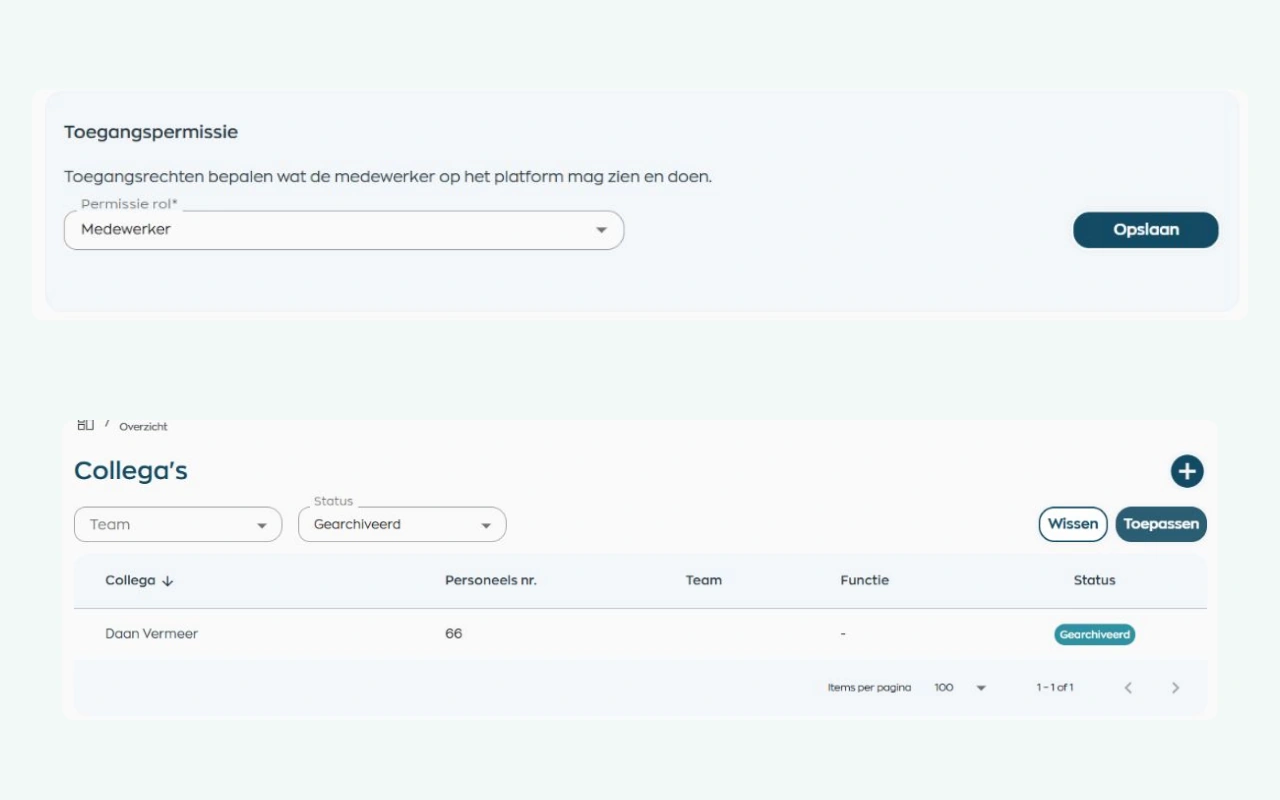
7. Access and offboarding
Administrators can work across the organization when granted that access. Managers and team assistants can work only with their assigned teams and employees, using the features and actions their role permits. Employees access their own information in the Employee App.
When someone leaves, HR archives the account. This keeps the active organization clear, while the employee overview can be filtered by status.
What changes
HR, managers and employees use up-to-date employee information, with access to the details and actions appropriate to their role.
Prepare onboarding in a controlled workflow, keep the active organization clear, and use one employee record as the basis for data and follow-up.
Work with your assigned teams and employees, using the information and actions you need for your responsibilities.
Activate your account, review your own profile details, and use your personal WorkVine workflows in the Employee App.
Is this a fit for your organization?
WorkVine employee records software is designed for organizations that want to manage onboarding, access, documents and day-to-day follow-up from the same employee record.
Capabilities
Compare your employee journey step by step: from a draft record and access setup to evidence, connected workflows and archiving.
Frequently asked questions
Clear answers about onboarding, activation, self-service, documents, access permissions and offboarding.
Employee records software keeps each employee’s personal details, employment information, access permissions and documents together. Depending on the active modules and permissions, WorkVine connects that record with scheduling, leave, sick leave, tasks, projects, conversations and development.
Yes. You can add one employee or several new starters in the same step. WorkVine creates draft records first, so HR can review and complete them before activation.
Yes. When a candidate is hired through WorkVine Recruitment, WorkVine creates a draft record with the candidate’s data and documents. HR reviews the record before activating the account.
HR first completes the required profile and employment details and assigns a team. After activation, HR sets the appropriate access role and chooses when to send the welcome email with its password setup link.
In the Employee App, employees can review their name, form of address and birth details, and complete their address, telephone number, other contact information, emergency contact and profile photo.
Not automatically. Their role determines which features they can use. Their assigned access determines which employees a manager or team assistant can view and work with.
Official evidence can include an expiry date and other configured information. When the document type is linked to a qualification, WorkVine recalculates that qualification as Active, Missing or Expired.
HR can archive the account when someone leaves. This removes the employee from the active organization, while the employee overview can be filtered by status.
Where work, people and growth come together
Choose a familiar situation: a new starter, a change in access or an employee leaving. We will show how the profile, access, documents and connected workflows come together around the same employee record.