Requests get buried
A new colleague still needs to send a certificate. The request is in an email, but nobody can see whether they have acted on it.

Sound familiar?
Requesting a certificate sounds simple, until the request, attachment and review are spread across different people and inboxes.
A new colleague still needs to send a certificate. The request is in an email, but nobody can see whether they have acted on it.
A file arrives without its registration number or expiry date. Someone has to go back to the employee for the missing details.
Receiving a document does not mean it has been reviewed. Without an assigned task, it is unclear who has checked the evidence.
1. Request the right document
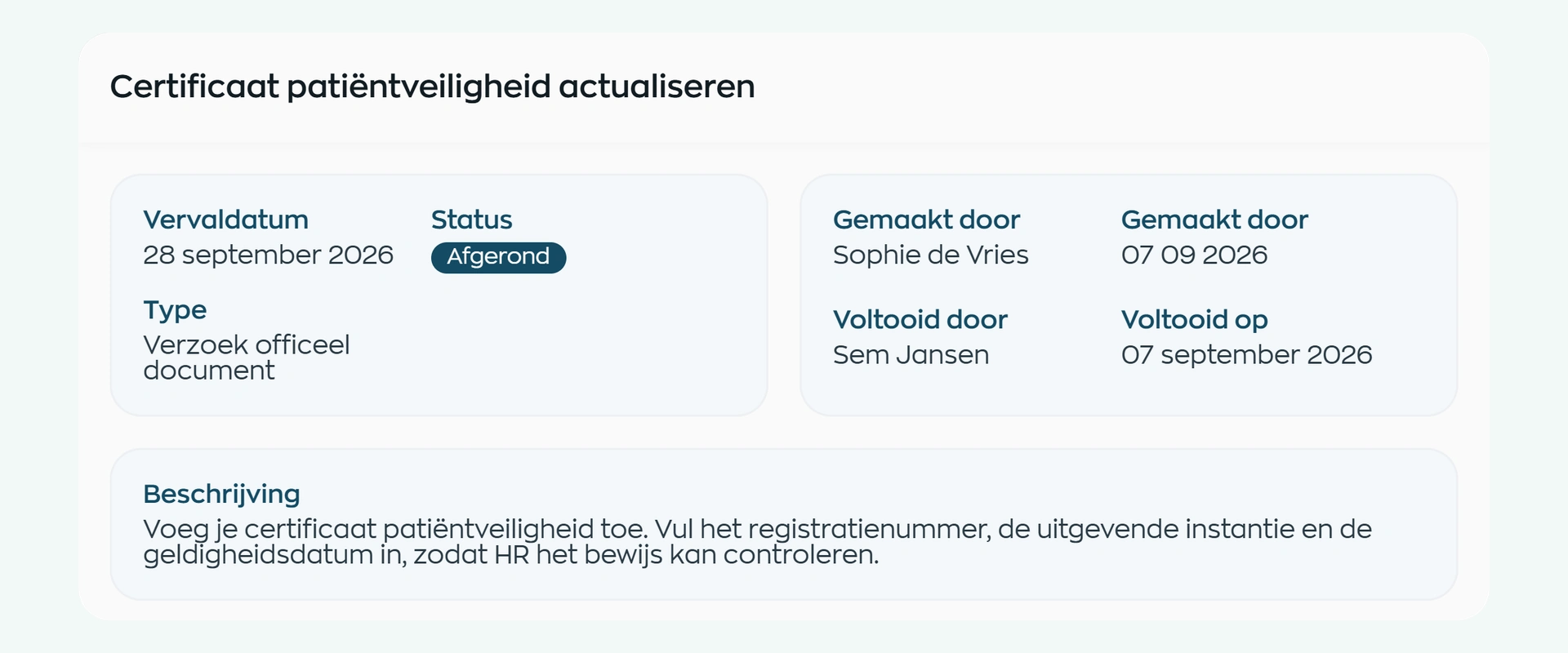
Create a document request for the right employee. Specify the evidence you need, explain which details to include and set a due date.
Whether it is a certificate for a new starter or updated evidence from an existing colleague, the request appears in the employee’s own action list. HR can track the request against the employee’s record.
2. Submit through the Employee App
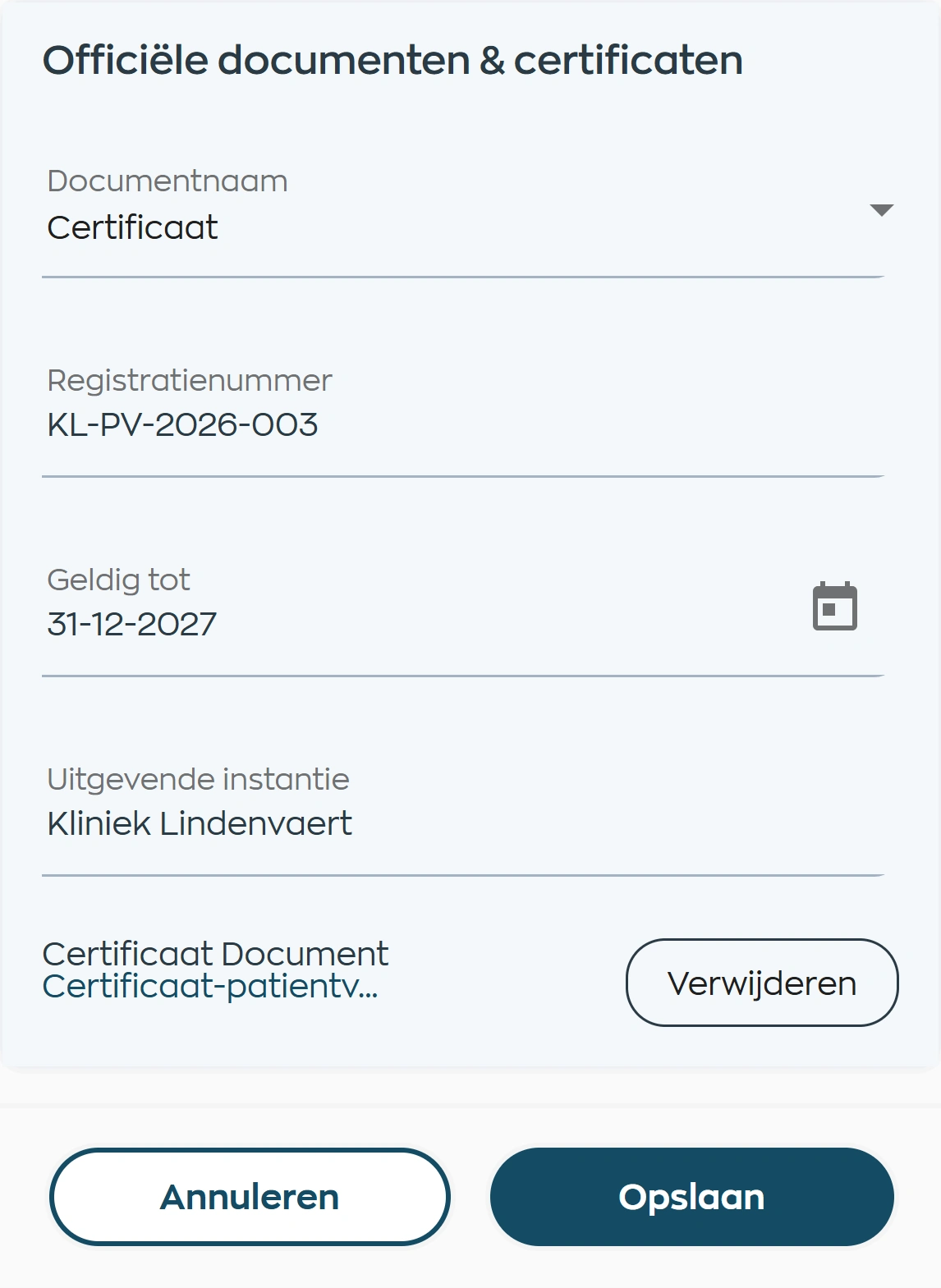
The employee opens the request, enters the document details and adds the required file. Each step stays connected to the original request.
The document type, registration number, issuer and validity date sit alongside the supporting file. The reviewer has more to work with than a standalone email attachment.
3. Review in the Office App
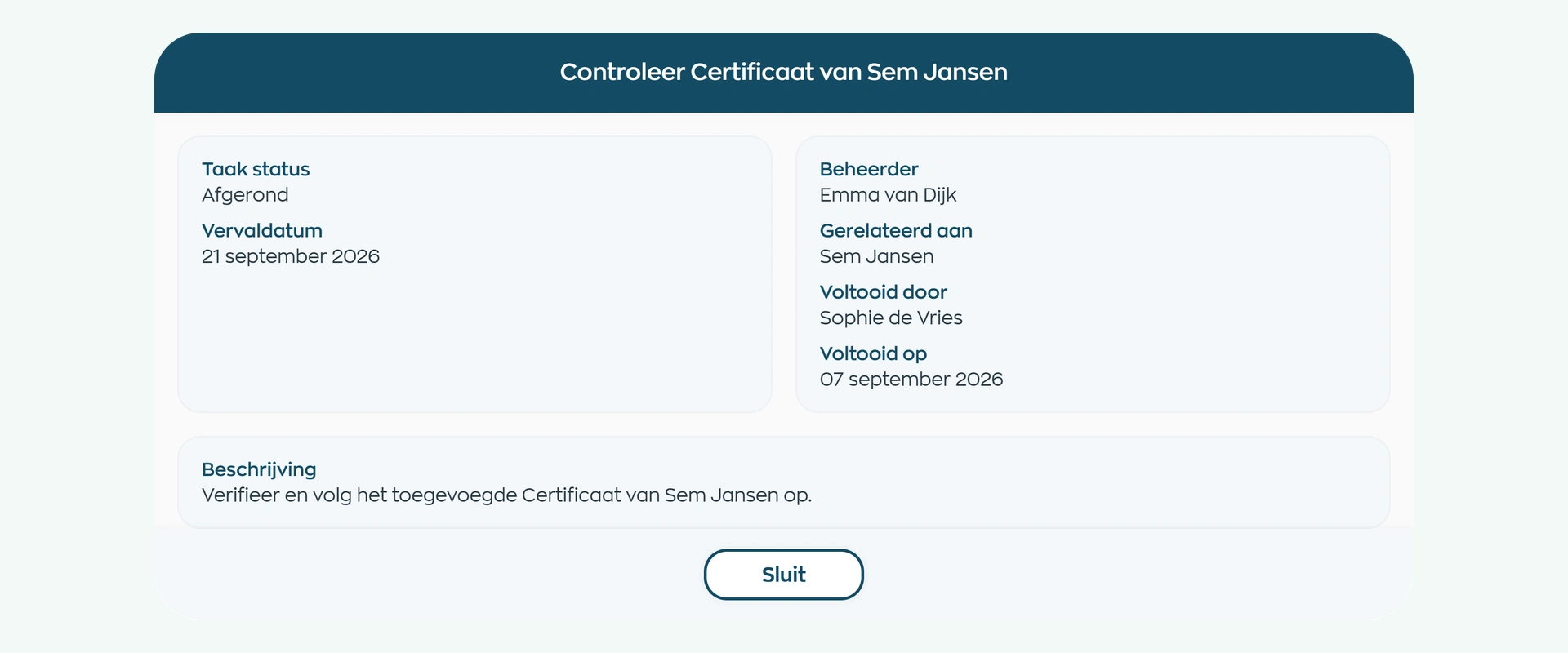
Submission creates a review task for an Office App user. HR or the responsible manager checks the submitted evidence and completes the review.
The task identifies the employee, the owner and whether the review is still open. Once completed, it also shows who finished the review and when.
4. Retain and follow up
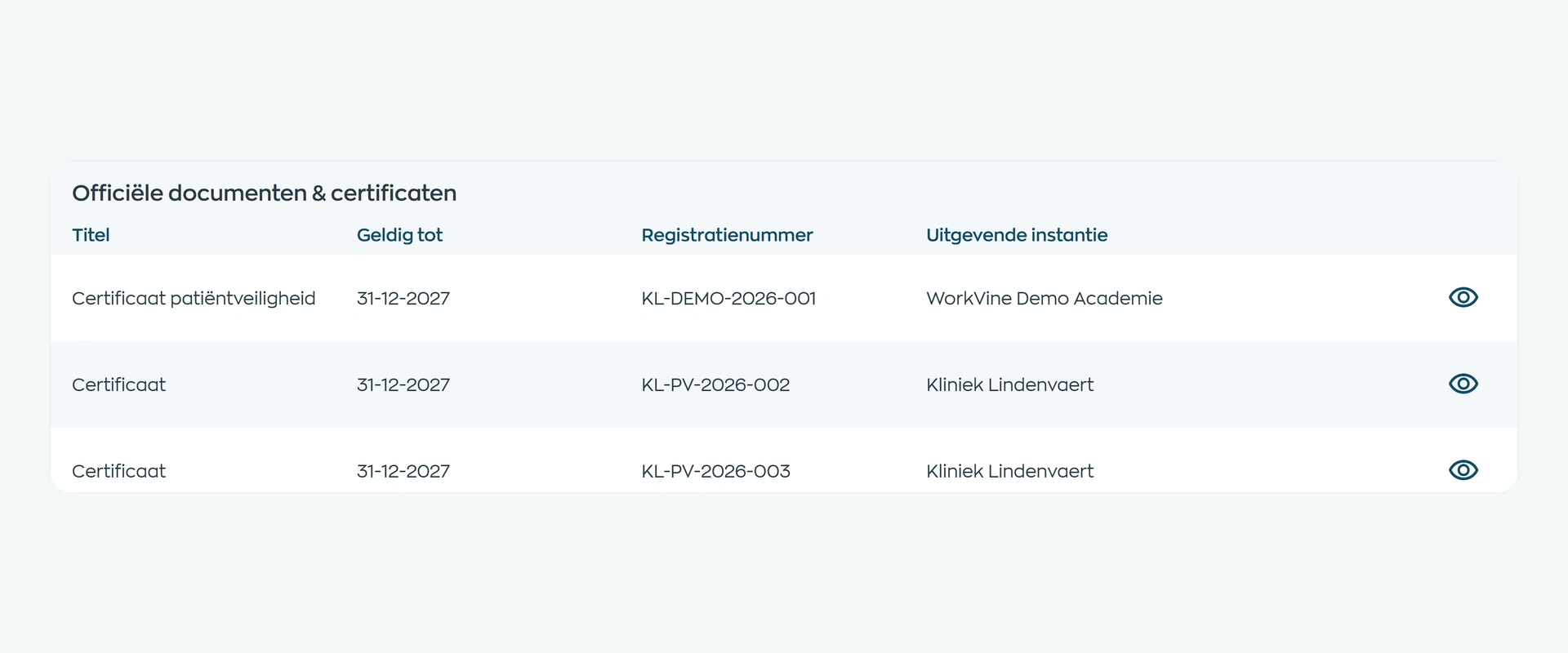
Official documents and certificates stay linked to the employee, together with registration details and validity dates. HR can find the evidence again without asking for another copy.
The fields you record depend on the document type. Expired evidence is flagged. If a document type supports a qualification, its status feeds into that qualification’s status.
What changes
The employee submits the document, the responsible colleague reviews it and HR keeps the evidence with the right person.
From the initial request to the completed review, the document process stays connected to the employee.
A specific review task makes it clear which evidence needs attention and who is responsible for following it up.
A clear action in the employee’s app explains which document and details to provide, and when they are due.
Does this fit your document process?
When documents are part of onboarding, development or recurring checks, a consistent process helps HR, managers and employees share the work.
Capabilities
Request, collect, review and keep employee documents in one connected process.
Frequently asked questions
How submission, file formats, review and validity work.
You can record official documents and certificates against an employee, using the fields configured for each document type. For example, a diploma or certificate can include a registration number, issuer and validity date. Other supporting files can be added to the employee record in the Office App.
The organization creates a specific document request. The employee opens it in the Employee App, enters the required details and uploads a PNG, JPG, JPEG or PDF file. Employees submit official documents through these requests rather than through an unrestricted document library.
Submission creates a review task for an Office App user. The responsible colleague checks the document and completes the task. The completed task records who finished it and when. Your organization remains responsible for assessing the evidence.
Yes. Where a document type uses a validity date, you record it with the supporting evidence. Expired documents are flagged. Qualifications & Compliance also shows how the evidence affects an assigned qualification.
Employee Records connects the employee profile with their wider workflows. Documents covers requesting, submitting, reviewing and retaining files and evidence. Agreements is for preparing formal documents with templates, employee data and electronic signing.
Where work, people and growth come together
Bring your document process to the demo. We will show how a request reaches an employee, how they submit their evidence and how the review is handled in the Office App.