Who has that laptop?
A name in a spreadsheet does not always tell you who is using an item now. Keep the asset and its employee assignment together.

Less searching, clearer handovers
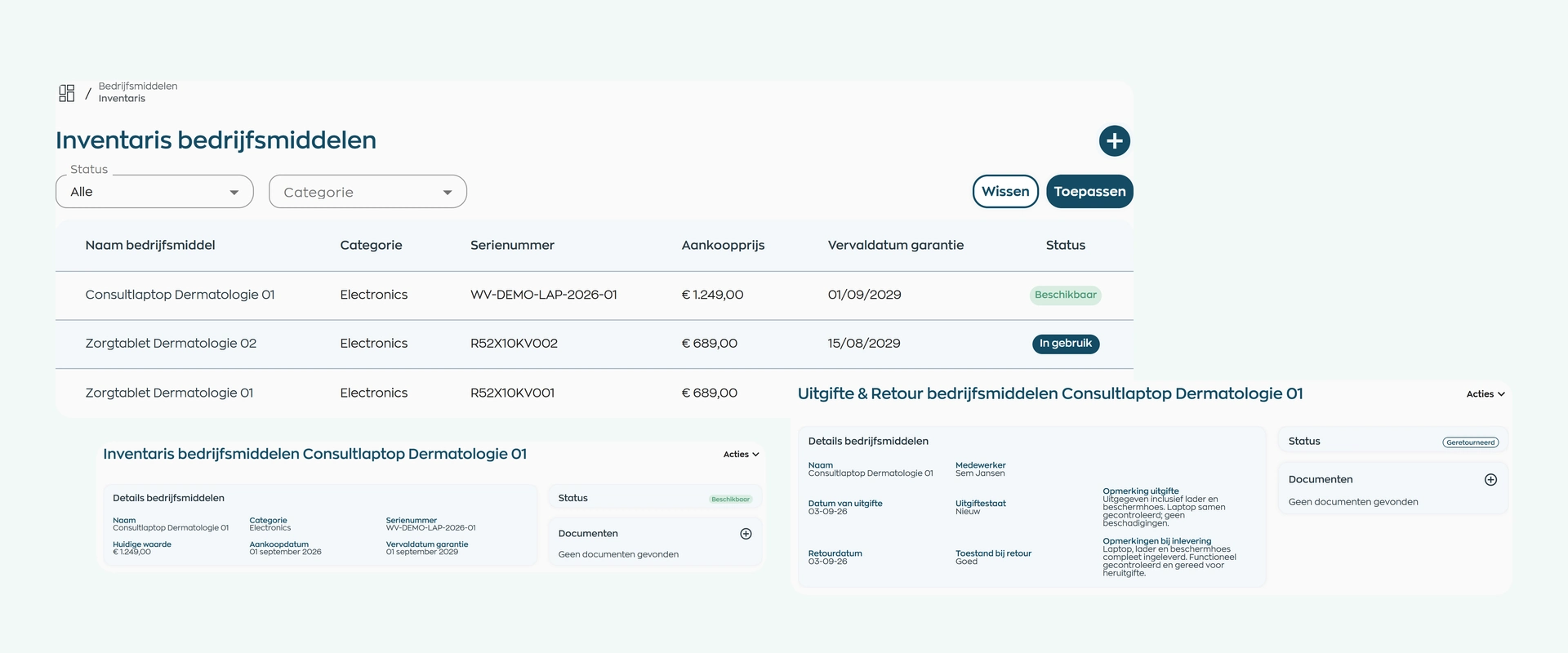
A key changes hands, a laptop is replaced, a colleague leaves. These are the moments when details get lost. WorkVine connects your inventory to issue and return records, so you can find out what was handed over, to whom and in what condition.
A name in a spreadsheet does not always tell you who is using an item now. Keep the asset and its employee assignment together.
Distinguish available items from those in use or needing attention. When someone joins, start with the equipment you already have.
Record condition, notes and attachments when equipment goes out and comes back. No need to reconstruct the handover later.
1. Get your inventory in order
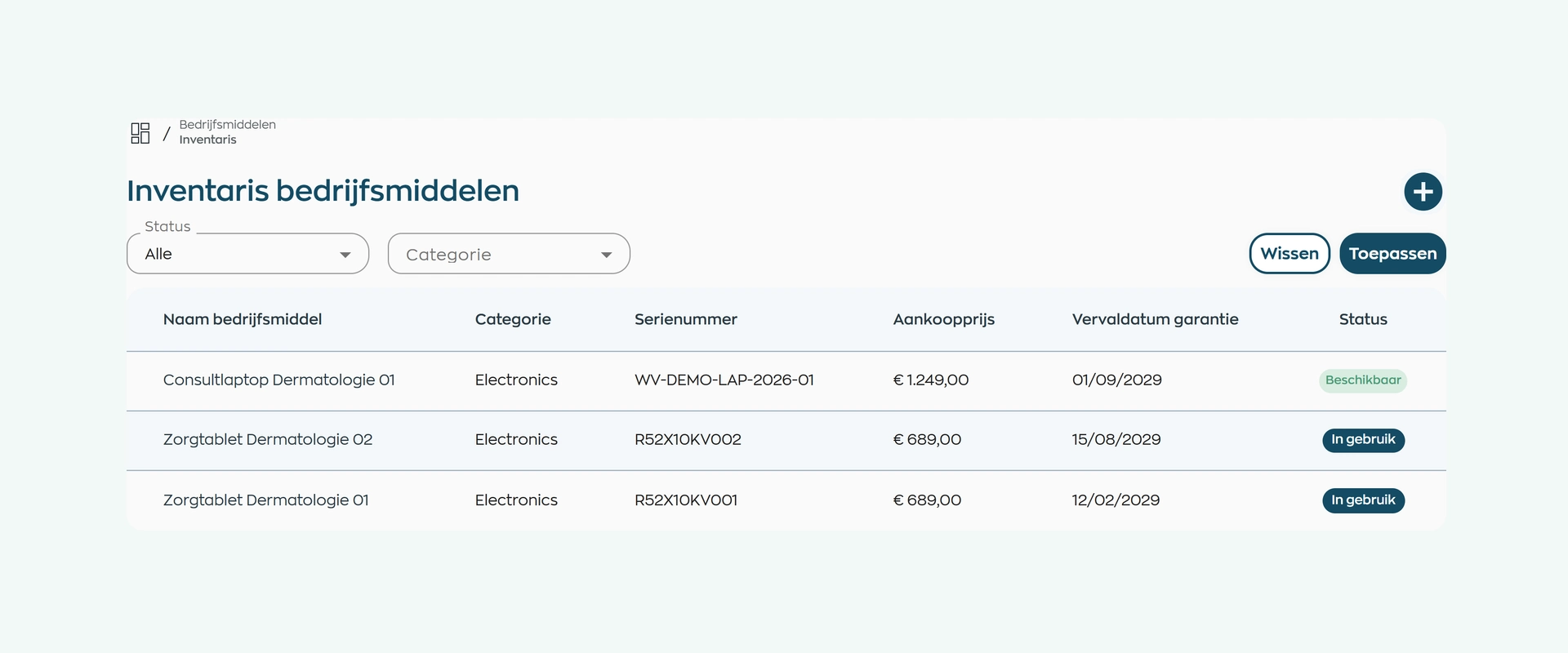
A new colleague needs a laptop. Start with a clear view of available equipment, not a round of messages to the team.
Record each item's category, location, model, manufacturer and serial number. Add a photo, purchase receipt or warranty document to tell similar devices apart.
Filter by category and status. Available, in use, under maintenance, out of service or lost: the recorded status shows what you can use and what needs attention first.
2. Make every handover clear
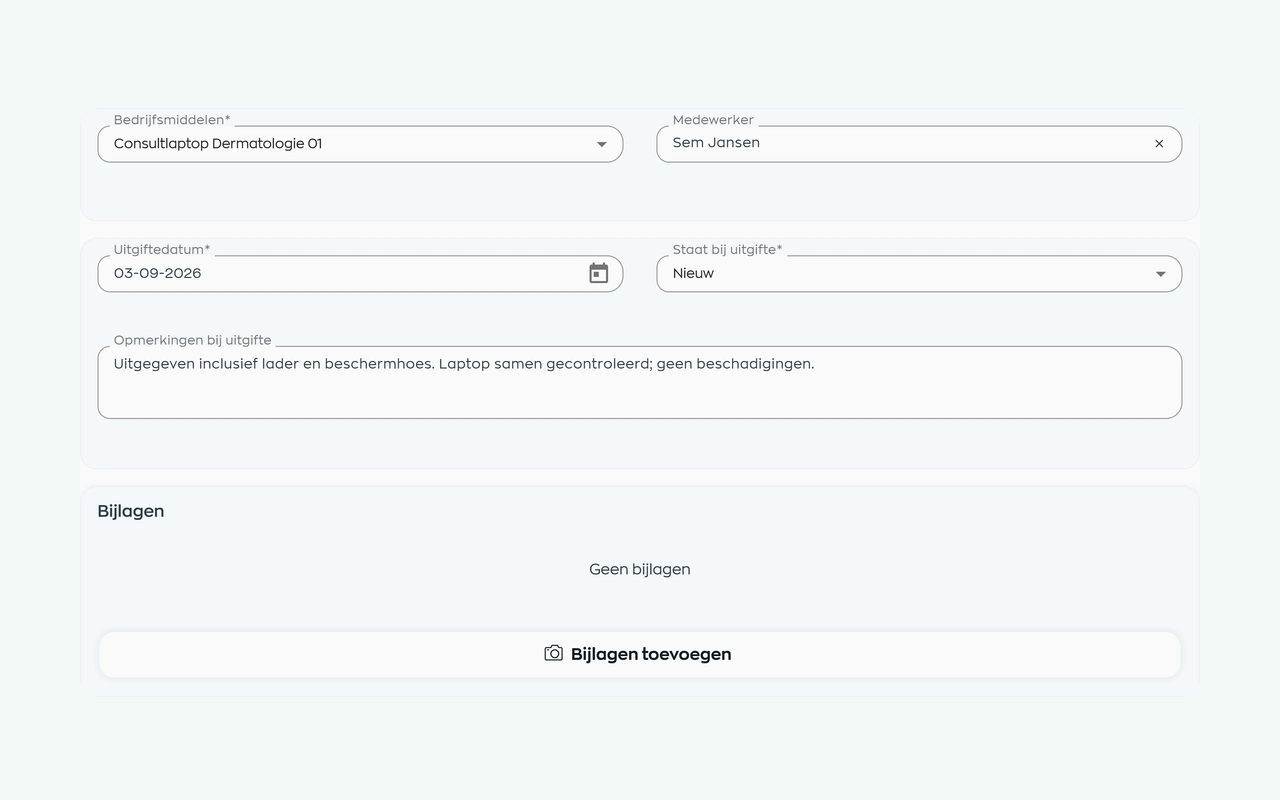
Handing over a laptop takes a moment. An issue record keeps it clear which device belongs with which employee long afterward.
Select the asset and the employee receiving it. Record the issue date and condition: new, good, fair or poor. Add notes about supplied accessories or existing damage.
Attach an equipment loan agreement or photos to the issue record. Handover details stay with the asset, not buried in an email.
3. Complete the return properly
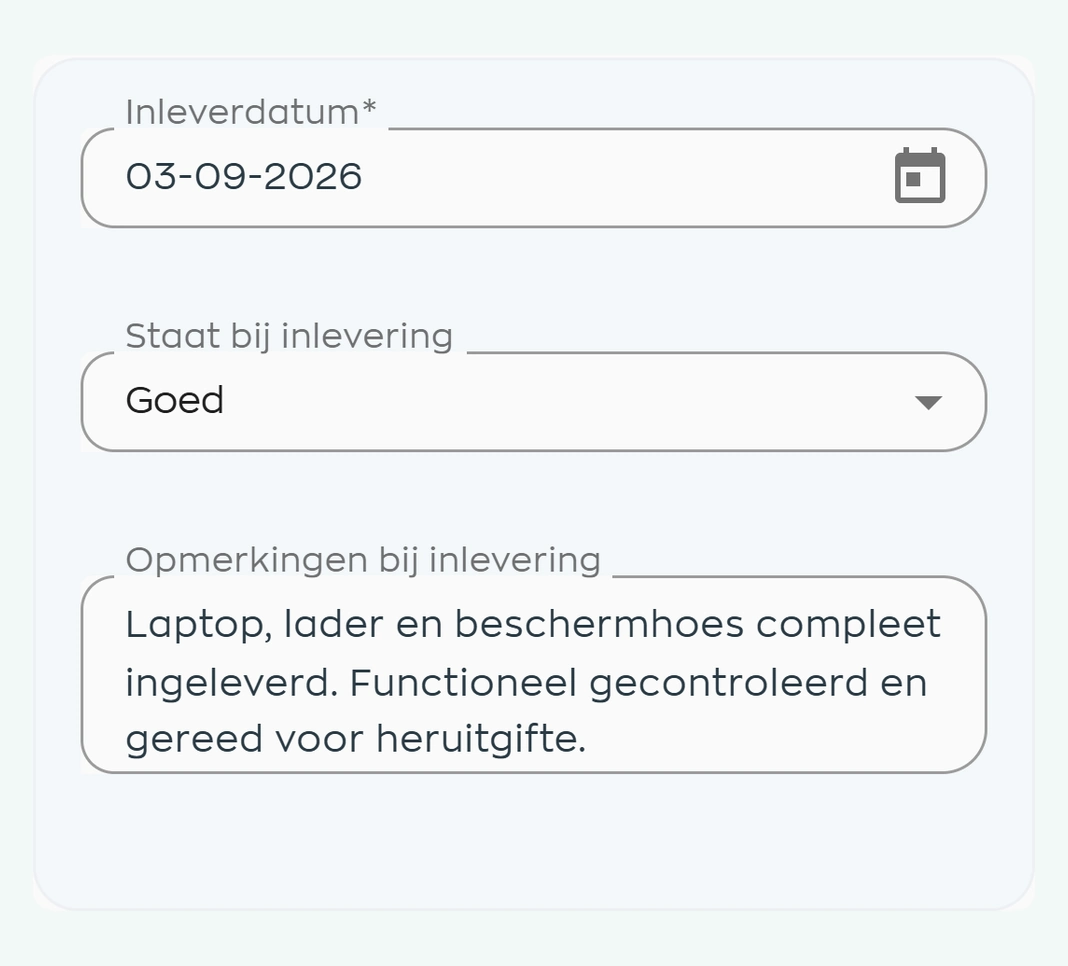
When equipment is replaced, someone changes roles or an employee leaves, you need to know what comes back and in what condition. Open the issue record and add the return details there.
Record the return date, condition and anything worth noting. A photo or attachment helps document damage or missing parts clearly.
Issue and return details can then be reviewed together. Keep the asset's status up to date so it is clear whether it is available again or needs maintenance first.
4. Find the details without the search
Who used this device before? Which items are still assigned to a colleague who is leaving? There is no need to search through old inventory lists or messages.
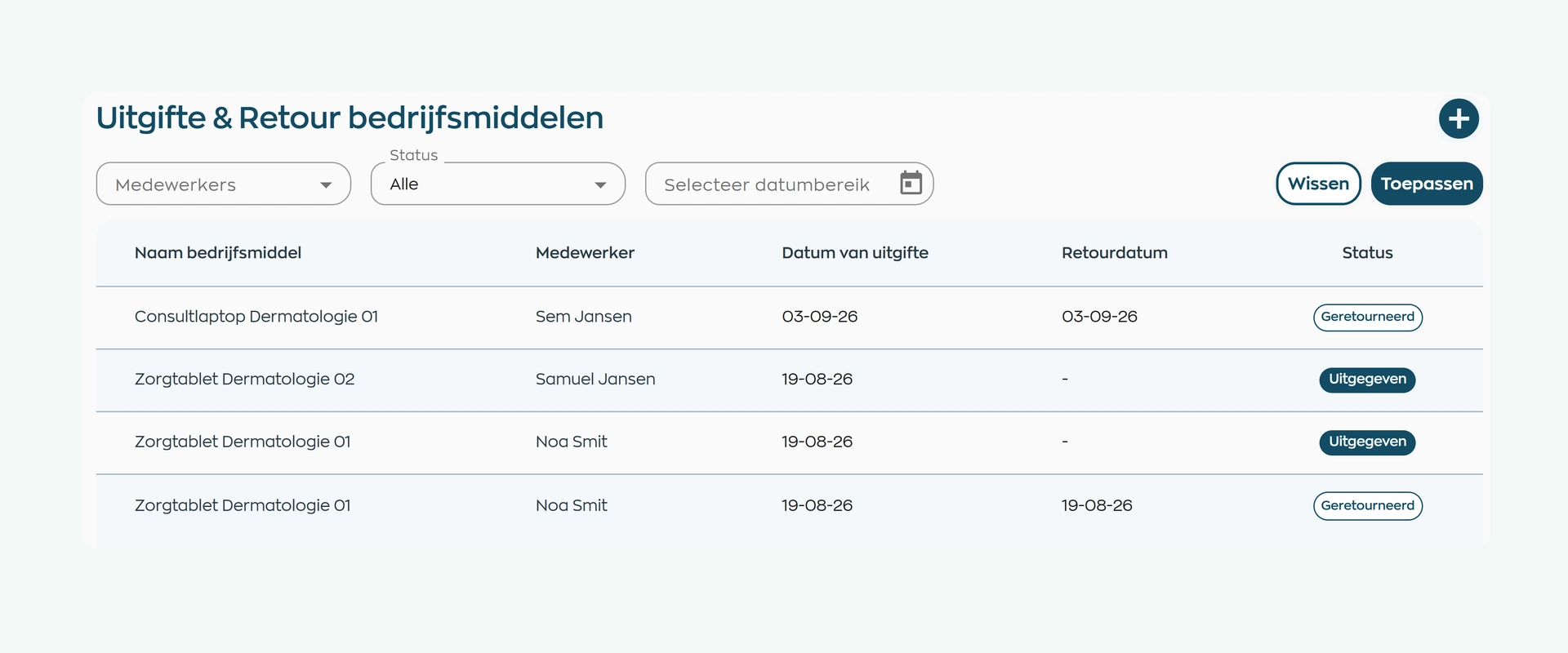
View the asset's issue history or filter Issue & Return by employee, status and period. Open a record to review dates, condition and the agreements made.
The employee record also shows which company assets are in use. HR can find the right equipment details when someone joins, leaves or needs a replacement.
What changes
The same records help administrators manage equipment, HR handle arrivals and departures, and employees understand the agreements about their equipment.
One inventory with identifiable items, current statuses and details of every handover. Less asking around and searching separate lists.
When someone joins, changes roles or leaves, see which items have been issued and which returns have already been recorded.
Clear agreements about the equipment received and its condition at handover. At return, record what actually comes back.
Is this a fit for your team?
From office laptops to tools used on the road: when equipment goes out and comes back, every handover needs to be clear.
Capabilities
Turn a separate inventory list into a practical record of equipment, employees and handovers.
Frequently asked questions
Practical answers about inventory, issue and return records, supporting documents and the equipment employees use.
Record the assets your organization owns, who they have been issued to and what was recorded when they came back. Inventory, employee, status, condition and usage history stay together. This includes laptops, phones, keys and tools used by employees.
The inventory includes categories for electronics, furniture, office supplies, vehicles, software licenses, tools and equipment, and other assets. Record the relevant details for each item, such as model, manufacturer, serial number, location and status.
Yes. Filter the inventory by status and category. Distinguish available items from those in use, under maintenance, out of service, lost or archived. The administrator keeps these records up to date.
Select the asset and employee, then record the issue date and condition: new, good, fair or poor. Add notes and attachments, such as an equipment loan agreement or photos of the item and its accessories.
Find the employee's issue records and open the relevant entry. When equipment is returned, record the date, condition and any notes or attachments. You can then see which items came back and what condition they were in.
Yes. Condition is recorded separately at issue and return. Add notes and photos to document an existing scratch or a missing charger, for example. The record helps make each handover clear.
Yes. Each asset has an issue history. You can also search Issue & Return by employee, status and period. The employee record shows the company assets that person currently uses.
Yes. Under maintenance is one of the inventory statuses, alongside available, in use and out of service. It makes clear that an item needs attention before being issued again.
Where work, people and growth come together
Bring your current inventory list to the demo. We will show you how to register, issue and take back equipment, with the employee and handover details in view.